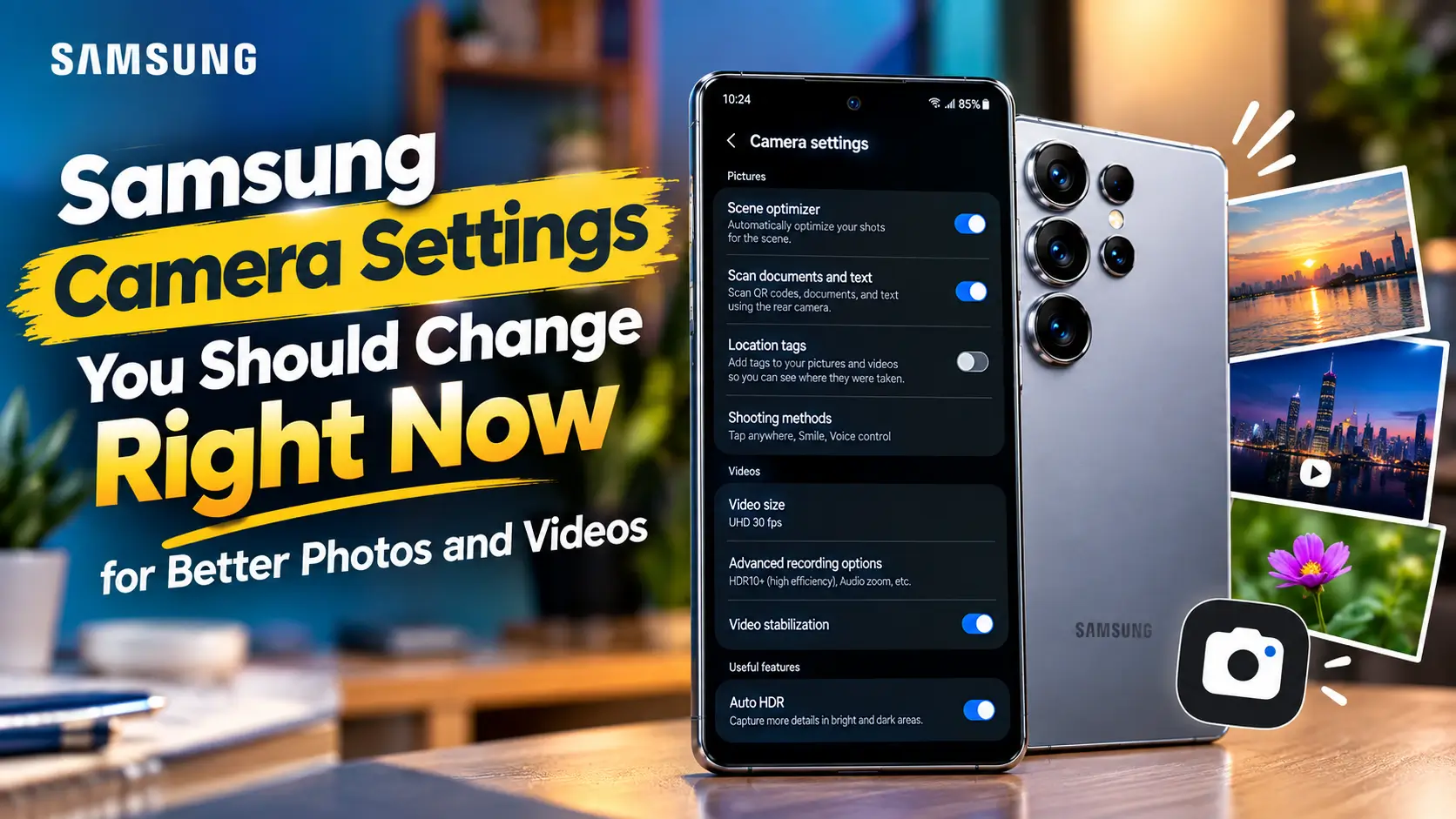

Your Samsung phone’s camera is capable of much better photos than its default settings usually produce. Most of that gap isn’t about hardware, it’s about a handful of settings sitting untouched since the day the phone was set up.
Even experienced reviewers genuinely disagree on one of the most talked-about camera settings on Samsung phones, Scene Optimizer, and that disagreement itself is useful information, not a sign that one side is simply wrong. This guide starts with the quick, no-brainer changes worth making immediately, then moves into more advanced options for anyone who wants to go further.
Quick Settings Everyone Should Change First
Turn On Grid Lines for Better Composition
Path: Camera app → Settings (gear icon) → Grid lines
This single toggle helps align horizons and follow the rule of thirds without needing any photography background at all, a genuinely free composition upgrade that costs nothing and takes seconds to turn on.
Adjust Exposure Compensation for Bright or Dim Scenes
Path: Tap the +/- icon in the camera viewfinder.
A negative adjustment in bright environments prevents blown-out highlights; a positive adjustment in dim settings helps recover shadow detail. It’s a simple manual override on the camera’s automatic guess and often a noticeably better one.
Enable High Picture Resolution to Stop Reverting to Default
Path: Tap the resolution indicator (e.g., “12M”) in the viewfinder to shoot at full sensor resolution, then Settings → Settings to keep → High picture resolutions to make it stick.
Here’s the specific behavior worth knowing: without locking this in, the camera quietly reverts to a lower default resolution the next time the app opens, even after manually selecting full resolution the time before. This one setting fixes that for good.
The Scene Optimizer Debate — On or Off?
What Scene Optimizer Actually Does
Path: Camera app → Settings → Intelligent optimization → Scene optimizer
It detects what’s in the frame, food, greenery, people, night scenes, and automatically adjusts saturation, contrast, and white balance to match what it thinks the scene calls for.
The Case for Keeping It On
More vibrant, “ready to share” images straight out of the camera, with zero editing needed, genuinely useful for casual users who post directly to social media without ever opening an editing app.
The Case for Turning It Off
More natural, less aggressively processed results, particularly noticeable in edge sharpening. Better suited to anyone who prefers a realistic look or who plans to edit photos afterward and doesn’t want the camera’s own processing fighting against that later work.
This is genuinely a case where experienced reviewers land in different places, it’s a real trade-off, not a mistake either way.
Our Recommendation—Try Both
Take a few comparison shots with it on and off in typical shooting conditions, not just once, before deciding. The difference is often far more noticeable in certain lighting and scene types than others, so one test shot rarely tells the full story.
More Advanced Settings Worth Adjusting
Turn Off Adaptive Pixel and Upscale Zoom
Path: Camera app → Settings → High-resolution settings
These features can introduce artificial-looking texture and detail that wasn’t actually captured by the sensor in the first place. Disabling them often results in a more authentic, if slightly less dramatically “enhanced”, final image.
Explore Pro Mode for Full Manual Control
Path: Camera app → More → Pro (or Pro mode, depending on model)
ISO controls light sensitivity, shutter speed controls how long the sensor captures light, white balance controls color temperature, and focus can be set manually rather than relying on autofocus. Samsung’s Pro mode UI is genuinely approachable even for total beginners; it’s worth exploring, not just leaving for “advanced users.”
Video-Specific Settings
Enable HDR10+ Video Over Standard HDR
Path: Camera app → Settings → Rear video resolution/format (varies by model)
HDR10+ generally produces cleaner, more controlled dynamic range in video than standard HDR on Samsung’s processing pipeline, a meaningful quality difference for anyone shooting video regularly.
Video Recording in Photo Mode
A genuinely useful, lesser-known shortcut: long-pressing the shutter button while in Photo mode instantly switches to video capture, no menu navigation required, perfect for not missing a moment while fumbling through settings.
Simple Shooting Habits That Improve Results (No Settings Required)
Step Closer Instead of Zooming
Physically moving closer preserves far more real detail and reduces noise compared to digital or hybrid zoom, especially at higher zoom levels where image quality drops off fastest.
Let Focus Lock Before Pressing the Shutter
A brief pause after tapping to focus, especially in low light, noticeably improves sharpness compared to firing the shutter the instant the tap registers.
And if it’s the hardware itself holding photos back rather than the settings, checking a trusted Samsung mobile shop for current options is a reasonable next step.
Bonus—Go Further With Good Lock’s Camera Assistant
What It Is?
Camera Assistant is a free add-on module within Samsung’s Good Lock app, a separate download, not built into the camera app by default, that unlocks additional fine-tuning options beyond what’s normally available.
Useful Features Inside
A quick 2x crop zoom shortcut, an automatic HDR toggle, and auto lens switching (where the camera intelligently picks the best lens based on distance, lighting, and zoom level) are all genuinely useful additions for anyone willing to install one extra app.
For anyone whose camera hardware itself, not just the settings, is starting to feel limiting, it might be worth browsing current Samsung mobile price listings to see what a newer sensor and processing pipeline can add on top of everything covered here.
Frequently Asked Questions
Should I turn Scene Optimizer on or off?
It depends on personal preference, on delivers punchier, ready-to-share images with no editing needed, while off gives more natural, less processed results better suited to photo editing afterward. Trying both in real shooting conditions is the best way to decide.
Why does my photo resolution keep reverting to a lower setting?
Samsung’s camera app defaults back to a lower resolution each time it reopens unless “High picture resolutions” is specifically enabled under Settings to keep, a one-time fix that locks in the higher resolution permanently.
What does Pro mode actually let me control?
Pro mode gives manual control over ISO (light sensitivity), shutter speed, white balance, and focus, the same core controls found in dedicated cameras, presented through a genuinely approachable interface.
Is HDR10+ better than standard HDR for video?
Generally yes on Samsung devices, HDR10+ tends to produce cleaner, more controlled dynamic range in video than standard HDR through Samsung’s processing pipeline.
What is Camera Assistant and do I need Good Lock to use it?
Camera Assistant is a free module within Samsung’s Good Lock software that provides additional camera fine-tuning features such as rapid zoom shortcuts and automatic lens swapping. Good Lock is a separate, free software that must be installed in order to use it; it is not included by default with the camera app.
Final Thoughts
Start with the quick, universal wins, grid lines, exposure compensation, and locking in high-resolution persistence—since these help regardless of shooting style. From there, make a deliberate choice on Scene Optimizer based on personal preference rather than assuming one setting is objectively correct for everyone. The more advanced settings, like Adaptive Pixel, Upscale Zoom, and Pro mode, reward a bit of hands-on experimentation rather than a single one-size-fits-all recommendation.
For anyone ready to go beyond the built-in camera app entirely, Camera Assistant through Good Lock is worth trying.